
Platforms
Connect TikTok
Until TikTok audits your app, posts through its API can only be private (Only me). So public video posts go through TikTok Studio: at the scheduled time Publit.Si opens the post's copy page, you download the video, copy the caption and post it in TikTok Studio yourself. With the optional Chrome extension, Publit.Si fills them in for you and you click Post.
You need
- A Cloudflare tunnel
- A TikTok account and a login for developers.tiktok.com
- A 1024×1024 icon for the app (any image of yours)
- A browser for TikTok Studio; Google Chrome only for the optional extension
Create the TikTok app and sandbox
Open developers.tiktok.com → Manage apps → Connect an app, platform Web.
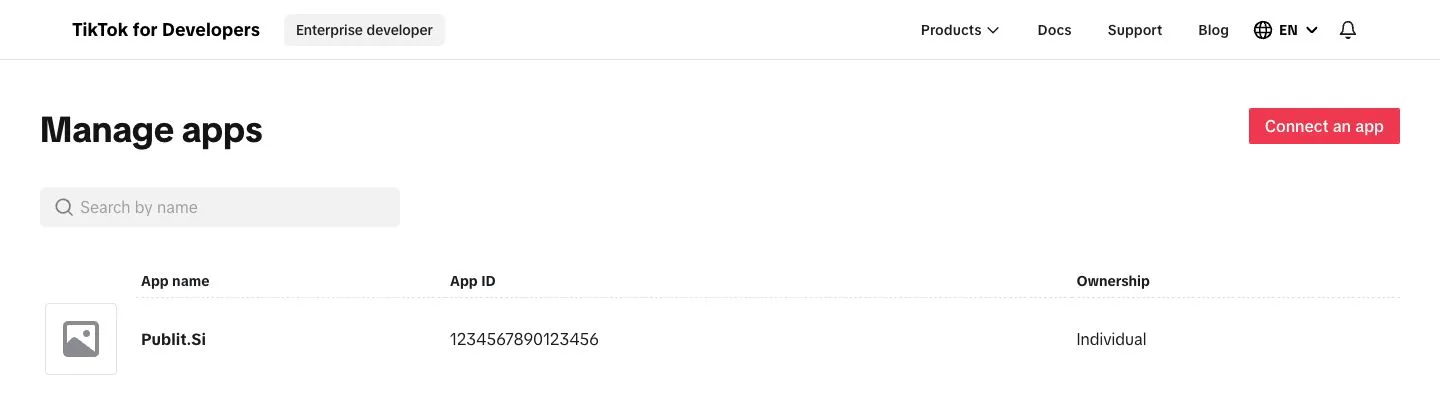
- 1:Connect an app
- 2:Your app
Create a sandbox for the app. It needs the icon, a category and privacy and terms URLs: use
https://publish.example.com/privacyandhttps://publish.example.com/terms. Your gateway serves them.
Add products and scopes
Switch to Sandbox → Products → Add products: Login Kit and Content Posting API (turn on Direct Post). Only for statistics also Display API.
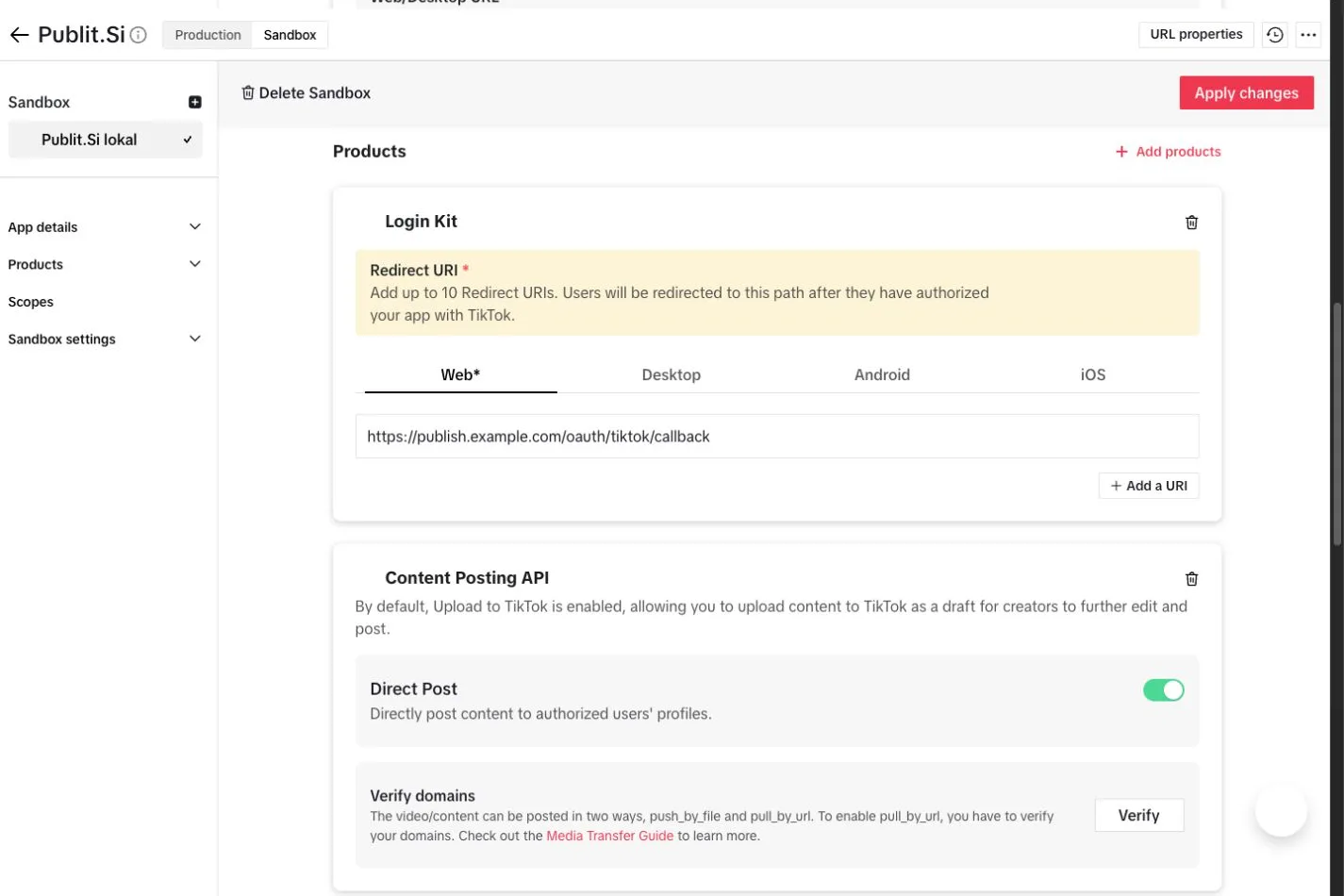
- 1:Sandbox
- 2:Login Kit
- 3:Content Posting API
- 4:Direct Post
Scopes:
user.info.basic,user.info.profile,video.upload,video.publish. For statistics (TIKTOK_ANALYTICS=1) alsouser.info.statsandvideo.list;video.listcomes with Display API.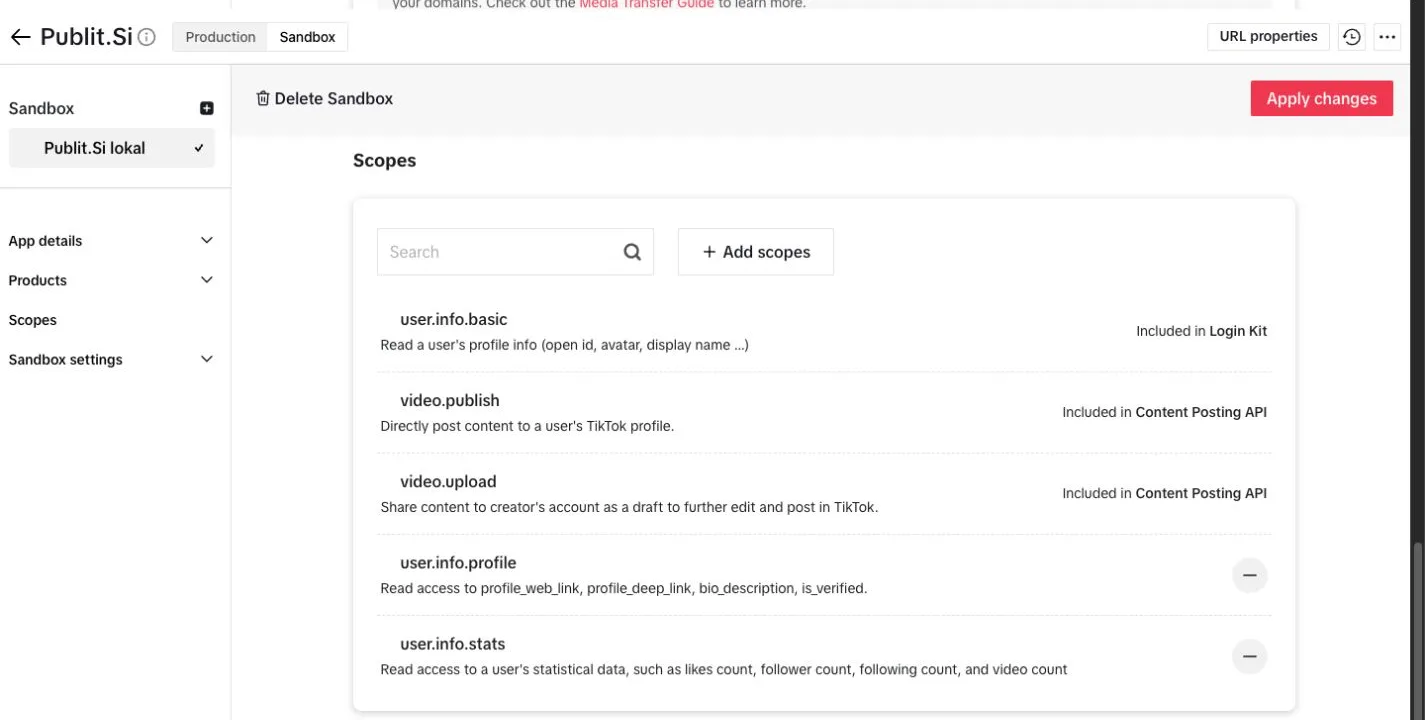
- 1:user.info.basic
- 2:video.publish
- 3:video.upload
user.info.statsandvideo.list(Display API).
Set the redirect URI and test user
Copy the redirect URI from Publit.Si › Settings › Platform setup › TikTok, e.g.
https://publish.example.com/oauth/tiktok/callback. Login Kit → Redirect URI → Web → paste it.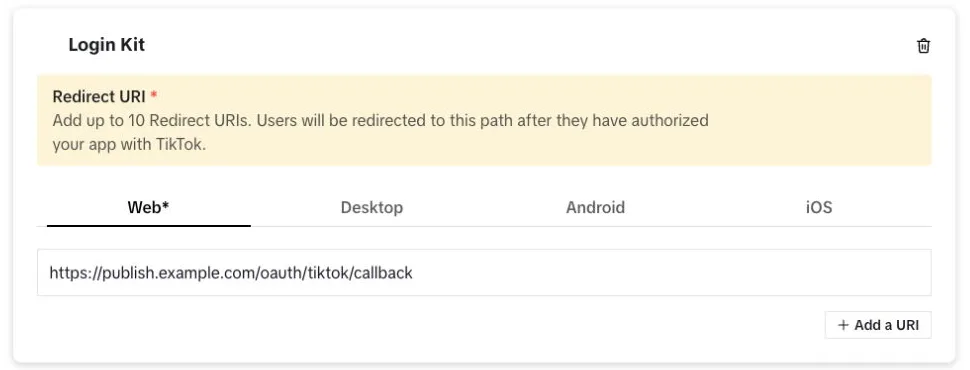
- 1:Web
- 2:Redirect URI
Sandbox settings → Target Users → Add account: your TikTok account.
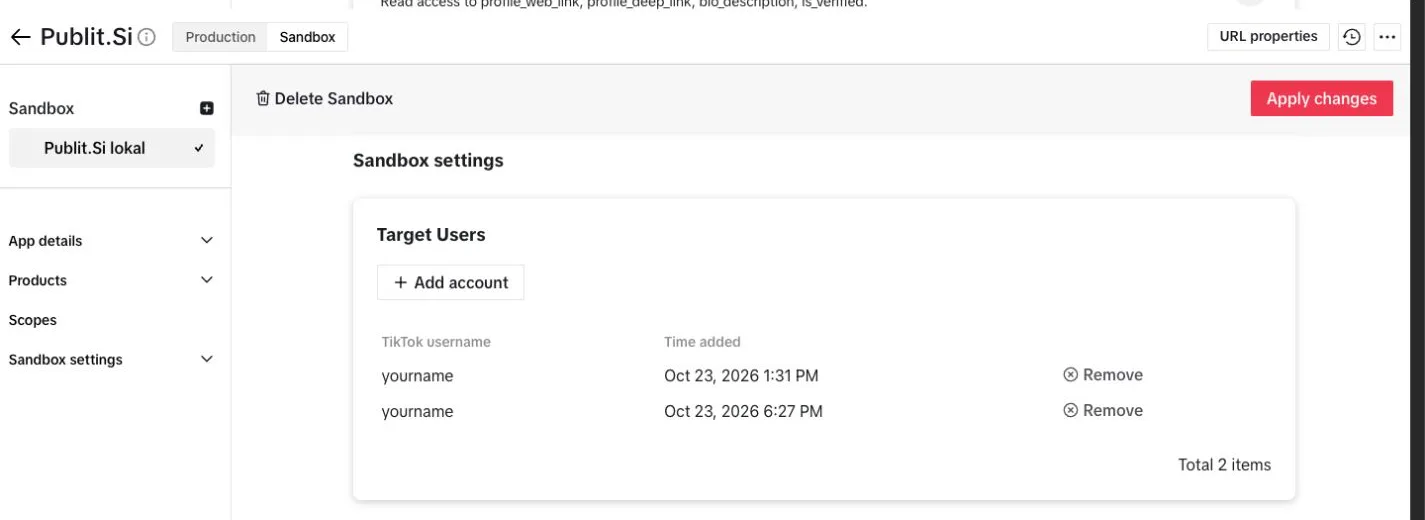
- 1:Sandbox settings
- 2:Add account
Click Apply changes (top right). Sandbox changes only count after that.
Photo posts only: under URL properties, verify your tunnel domain with the DNS TXT record TikTok shows (add it in Cloudflare → DNS).
Enter the keys
Copy the sandbox Client key and Client secret into Publit.Si under Enter credentials, or
.env:TIKTOK_CLIENT_KEY=… TIKTOK_CLIENT_SECRET=… TIKTOK_ANALYTICS=1 # if you added the statistics scopes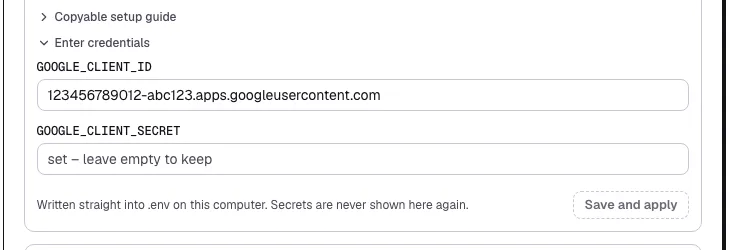
- 1:Client ID
- 2:Save and apply
.envfor you and restarts the services. Secrets are never shown again.
Install the Chrome extension
Only if you want TikTok Studio filled in for you. Do this once in every Chrome profile you use for TikTok.
Open
chrome://extensionsand switch on Developer mode (top right).Load unpacked → choose the
extension/folder in yourpublitsifolder.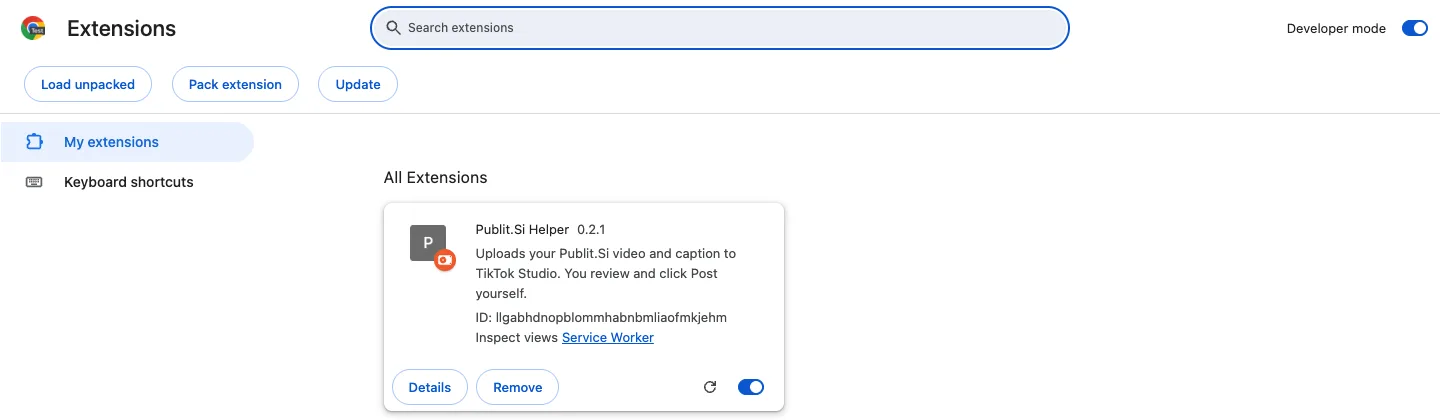
- 1:Developer mode
- 2:Load unpacked
- 3:Publit.Si Helper
chrome://extensions→ Developer mode on → Load unpacked → theextension/folder.Chrome shows a notice about developer-mode extensions. That's normal for extensions you load yourself.
Publit.Si → Accounts → open the TikTok account → turn on Chrome extension and confirm the warning.
Check
Settings › Platform setup › TikTok shows every item as set. With the extension: it appears in chrome://extensions in each TikTok profile and is turned on for the account.
Troubleshooting
redirect_uri_mismatch- The redirect URI in the dashboard must match exactly, including
http/httpsand port. - TikTok rejects the login with a scope error
- The statistics scopes aren't enabled. Switch off TikTok: statistics under Settings › Platforms › Statistics and comments (or set
TIKTOK_ANALYTICS=0and restart), then reconnect. - TikTok post never gets marked as published
- By default, confirm "It’s online" on the copy page or in the queue after posting yourself. With the optional extension, check it is installed in the right Chrome profile and turned on for this account; confirm "It’s online" yourself if needed.
Stuck? Search the troubleshooting list or write to us . Leave out secrets and tokens.