
Using Publit.Si
Publish your first post
Time to see it work: connect your accounts and schedule a short test post a few minutes ahead.
Connect your accounts
Accounts → New project (one per brand or channel), then Connect account and pick the platform.
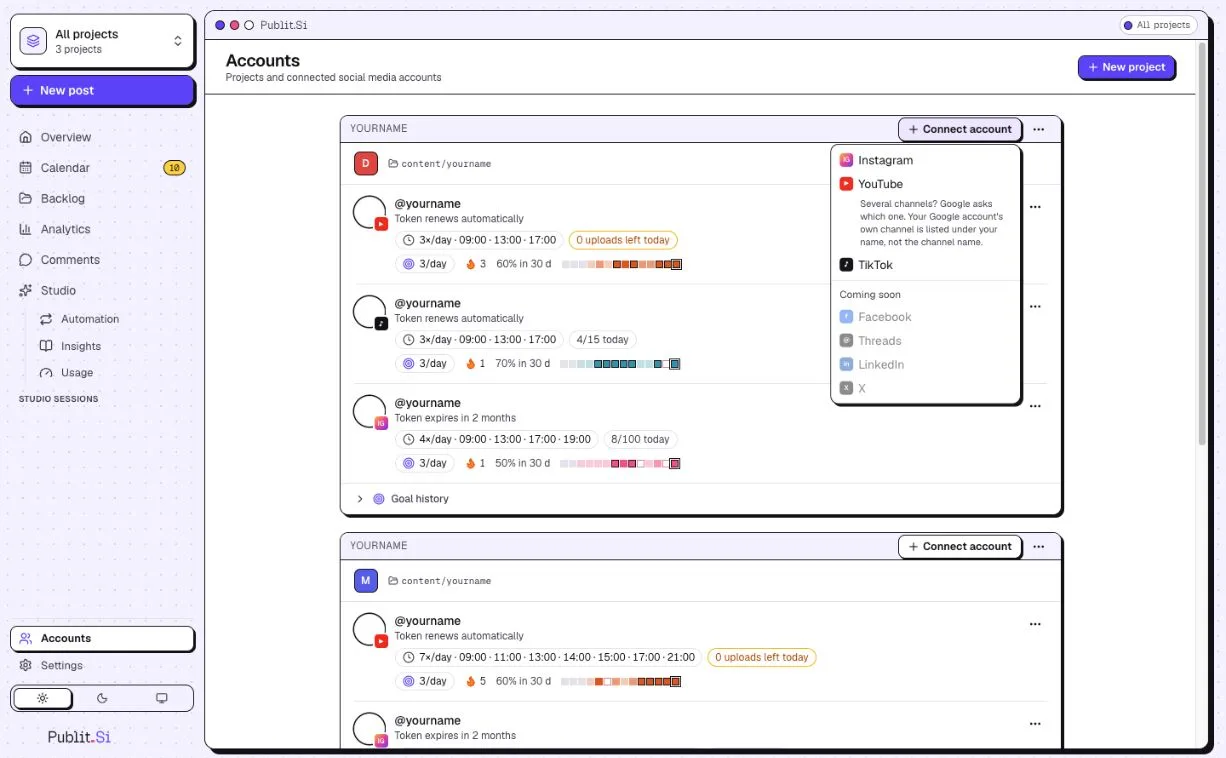
- 1:Connect account
- 2:YouTube
For Instagram, TikTok and X, choose the Chrome profile that is signed in to that account. For X, enter its @name too.
Schedule a test post
Create a post with a short test video or image and schedule it five minutes ahead.
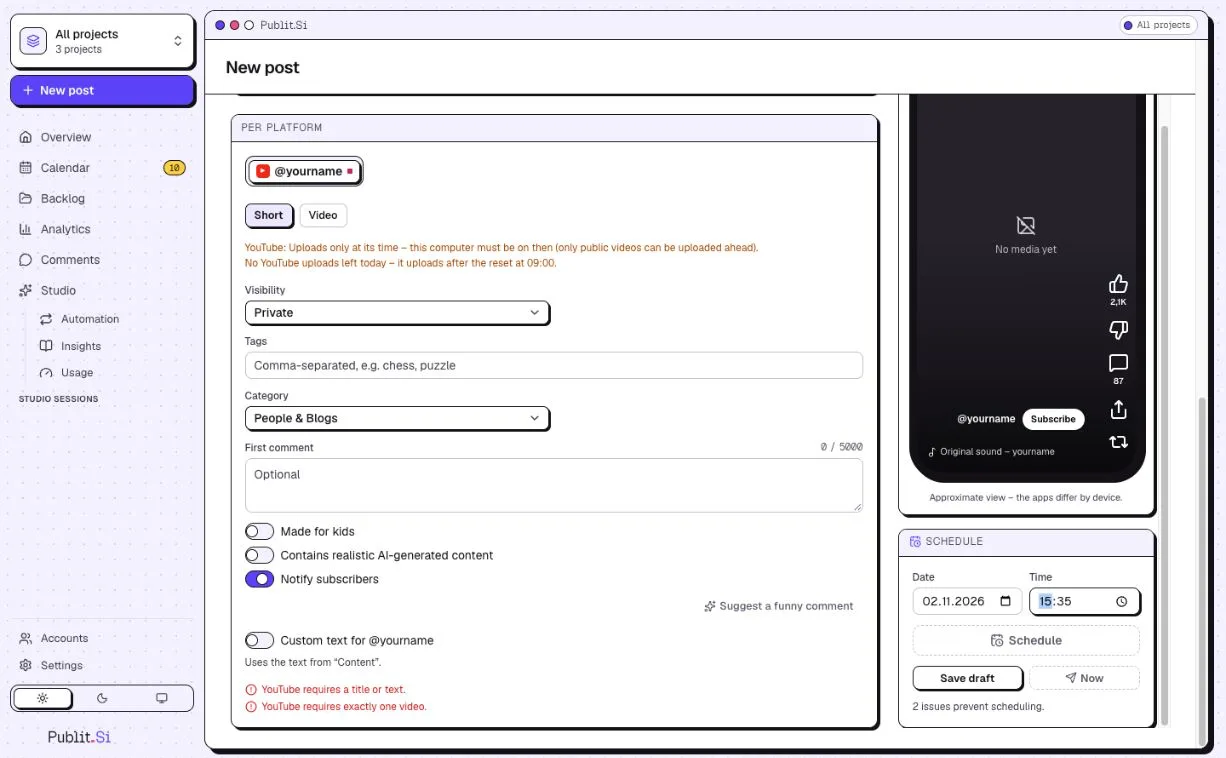
- 1:Visibility: Private
- 2:Time
- 3:Schedule
On YouTube, set the visibility to Private or Unlisted for the test, so it doesn't reach your subscribers.
Wait, and keep the computer awake.
Check
The post shows as published in the queue, and you see it on the platform. For TikTok Studio and X, the post's copy page opens and the post waits under Queue › “Waiting for you” until you post it and click It’s online.
Troubleshooting
- Instagram can't load media
- Bot Fight Mode is still on for the tunnel host.
- YouTube: "Access blocked: Google's review of … was not completed" (
403 access_denied) - Your Google project is in test mode and your account isn't on the list yet. In your own Google project: Audience → Test users → + Add users, add the Google account you connect with, save and connect again (step 5.2). No Branding, domain or publishing is needed for this. The sign-in then lasts 7 days; to skip the weekly reconnect see step 5, "YouTube without the weekly reconnect".
- X post never shows as published
- An X post is only marked published after you click It’s online on its copy page or in the queue. Publit.Si fills in nothing on x.com and cannot see what you post there. Still waiting? Open Queue › Waiting for you, click It’s online and paste the post's link.
- TikTok post never gets marked as published
- By default, confirm "It’s online" on the copy page or in the queue after posting yourself. With the optional extension, check it is installed in the right Chrome profile and turned on for this account; confirm "It’s online" yourself if needed.
Stuck? Search the troubleshooting list or write to us . Leave out secrets and tokens.