
Configuration
Turn on AI
AI is optional. Planning, the calendar, the editor and publishing work without it. Publit.Si uses the coding agent you already have (Claude Code, Codex, Cursor or OpenCode) with its login or API key; usage counts against your own plan. For your own models, see Your own LLM.
You need
- Claude Code, Codex, Cursor or OpenCode, signed in once (or an API key)
Install and sign in
Mac and Linux, Claude Code:
curl -fsSL https://claude.ai/install.sh | bash claude # sign in onceWindows, Claude Code (PowerShell). Use this native installer; an npm install only leaves a
claude.cmdthat Publit.Si can't start:irm https://claude.ai/install.ps1 | iexCodex: install it and run
codexonce to sign in.OpenCode (Mac and Linux), then connect a provider such as Mistral or Anthropic:
curl -fsSL https://opencode.ai/install | bash
opencode auth login
With an API key instead of a subscription
Claude Code uses an API key when ANTHROPIC_API_KEY is set. Add it to the .env file in the Publit.Si folder and restart Publit.Si; Settings then shows Claude Code as connected. Your own plugins, skills and CLAUDE.md keep working in the Studio.
Codex: printenv OPENAI_API_KEY | codex login --with-api-key. Cursor reads CURSOR_API_KEY from .env. OpenCode keeps the keys of the providers you connected with opencode auth login, or reads MISTRAL_API_KEY and similar from .env.
# .env in the Publit.Si folder
ANTHROPIC_API_KEY=sk-ant-…Pick the runner
Publit.Si → Settings → AI assistant: choose Claude Code, Codex, Cursor, OpenCode or Own API for texts in the app (“Create from idea”, “Improve with AI”, captions, replies). Coding agents sets which one starts Studio chats; it works in each project's own repository.
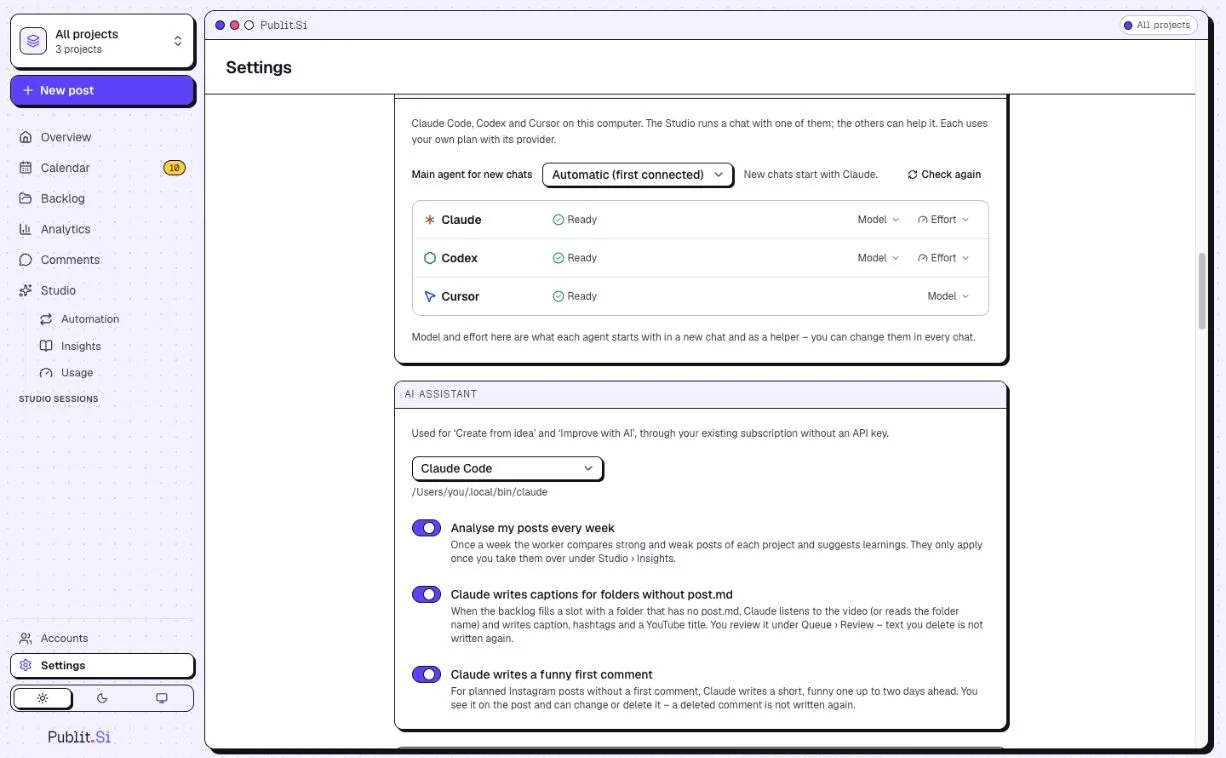
- 1:Coding agents: main agent for chats
- 2:AI assistant
Optional: let your agent use Publit.Si
Your agent can then read your projects and create drafts. It never publishes. Settings › MCP for Claude Code, Codex, Cursor & OpenCode shows these with your real path.
Claude Code (run in the
publitsifolder):claude mcp add --scope user publitsi -- pnpm --silent --dir "$(pwd)" mcpClaude Code on Windows (PowerShell, in the folder):
claude mcp add --scope user publitsi -- cmd /c pnpm --silent --dir "$PWD" mcpCodex, in
~/.codex/config.toml. Cursor: the block in Settings, in~/.cursor/mcp.json.[mcp_servers.publitsi] command = "pnpm" args = ["--silent", "--dir", "/path/to/publitsi", "mcp"]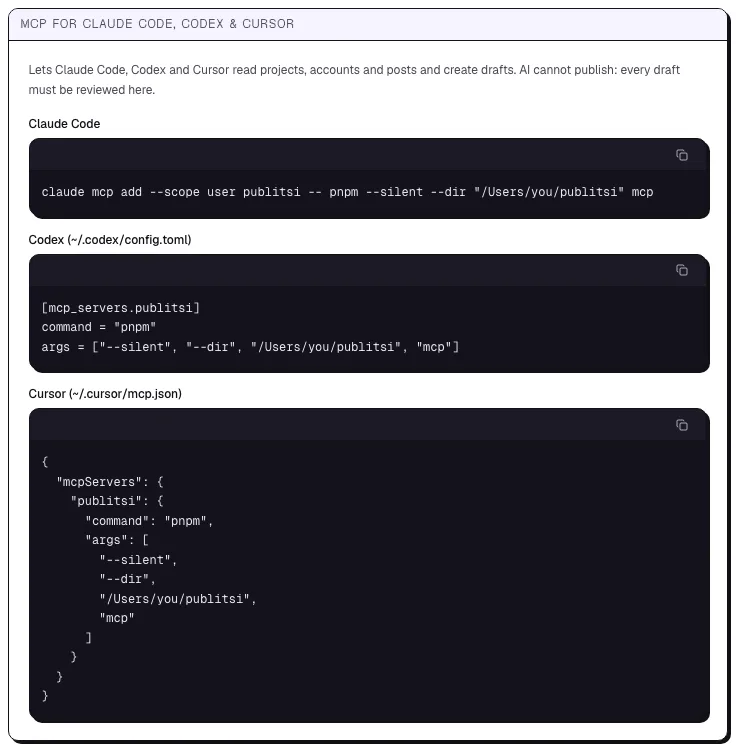
- 1:Claude Code
- 2:Codex
- 3:Cursor
OpenCode, in
~/.config/opencode/opencode.json:{ "mcp": { "publitsi": { "type": "local", "command": ["pnpm", "--silent", "--dir", "/path/to/publitsi", "mcp"], "enabled": true } } }
Check
Settings doesn't show “CLI not found” for the runner you chose.
Troubleshooting
- Windows: "Claude Code (
claude.exe) not found" - Install Claude Code with the native installer (step 8); an npm install isn't found.
- Daily Shorts run fails: the agent is not installed or signed out
- Sign in in a terminal (
claude /login,codex loginorcursor-agent login), then click Run now, or pick another agent in the automation.
Stuck? Search the troubleshooting list or write to us . Leave out secrets and tokens.