
Troubleshooting
Errors people ran into while setting up Publit.Si, and the fix for each. Type your error message below, or pick a section. Most fixes link to the right spot in the setup guide, with a screenshot. Your coding agent knows this list too: ask it in Claude Code, Codex or Cursor.
Install and start
pnpm local:setupshows ✗ forcloudflaredMac:
Fix it in “Install the tools” →brew install cloudflared. Windows:winget install Cloudflare.cloudflared, then open a new PowerShell window. Linux: the .deb/.rpm from github.com/cloudflare/cloudflared/releases or pkg.cloudflare.com.Windows: "Claude Code (
claude.exe) not found"Install Claude Code with the native installer (step 8); an npm install isn't found.
Fix it in “Turn on AI” →Windows:
pnpm ops:installcan't create a taskRun it in a normal (not elevated) PowerShell as the user who should run Publit.Si.
Fix it in “Start Publit.Si” →Linux:
systemctl --usersays "Failed to connect to bus"Log in as that user directly (desktop or
Fix it in “Start Publit.Si” →ssh user@server), not viasu/sudo -u. Without systemd, runpnpm devandpnpm servicesyourself (e.g. in tmux).Linux: services stop when you log out, or don't start after a reboot
Run
Fix it in “Start Publit.Si” →sudo loginctl enable-linger $USERonce (step 7).Linux: "The master key is in the desktop keyring … but no keyring is reachable"
The key was stored in the keyring of your desktop session. Run Publit.Si in that session, and install
Fix it in “Install the tools” →secret-tool(libsecret-tools; Fedora:libsecret).Migration says the database is busy
Stop
pnpm devand close old Claude/Codex sessions; the command lists the processes.
Tunnel
Tunnel stays red
Check
~/.cloudflared/publitsi.yml(UUID, credentials file, hostname) andPUBLITSI_PUBLIC_URL.Fix it in “Open a tunnel with Cloudflare” →Show where to fix it
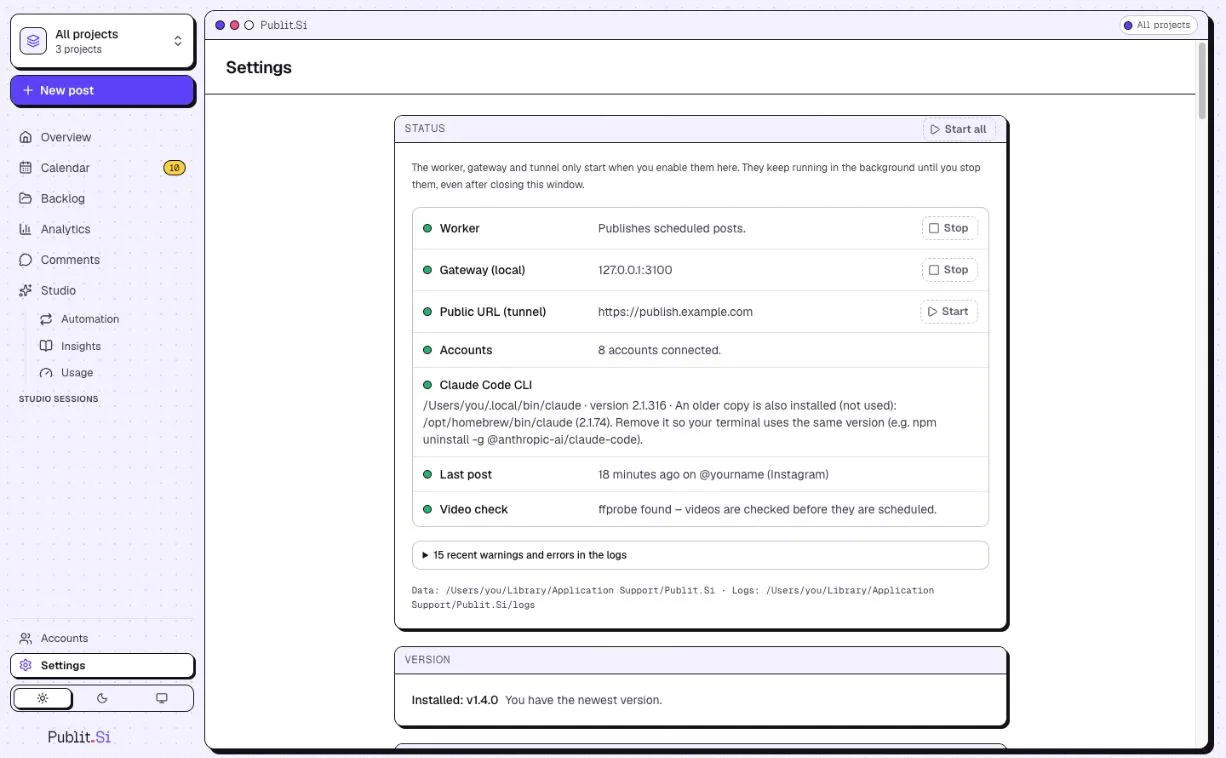
- 1:Worker
- 2:Public URL (tunnel)
Connecting any platform
redirect_uri_mismatchThe redirect URI in the dashboard must match exactly, including
http/httpsand port.Show where to fix it
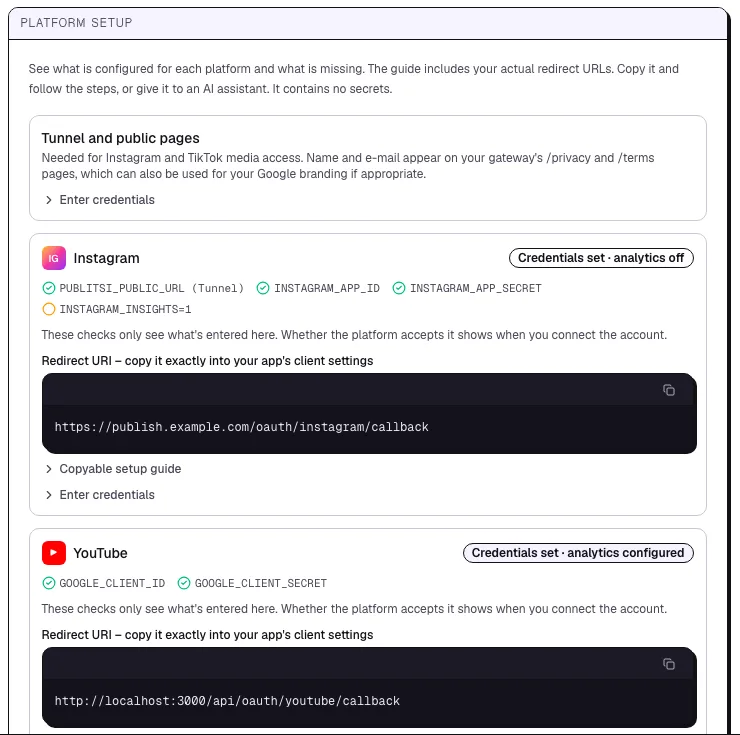
- 1:Status of the platform
- 2:Redirect URI to copy
Instagram: "Insufficient developer role"
The account hasn't accepted the tester invitation, or Chrome is signed in to another account.
Fix it in “Connect Instagram” →Show where to fix it
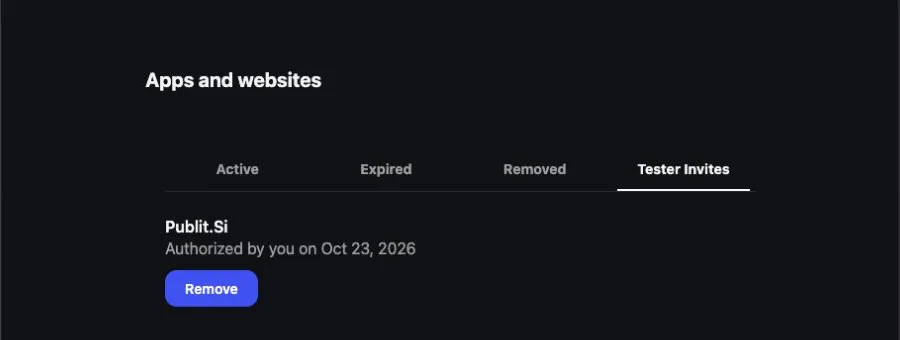
- 1:Tester Invites
- 2:Your app
Instagram: "Invalid scope"
A permission from step 4.3 is missing. Set
INSTAGRAM_INSIGHTS=0, restart, reconnect.Fix it in “Connect Instagram” →Show where to fix it
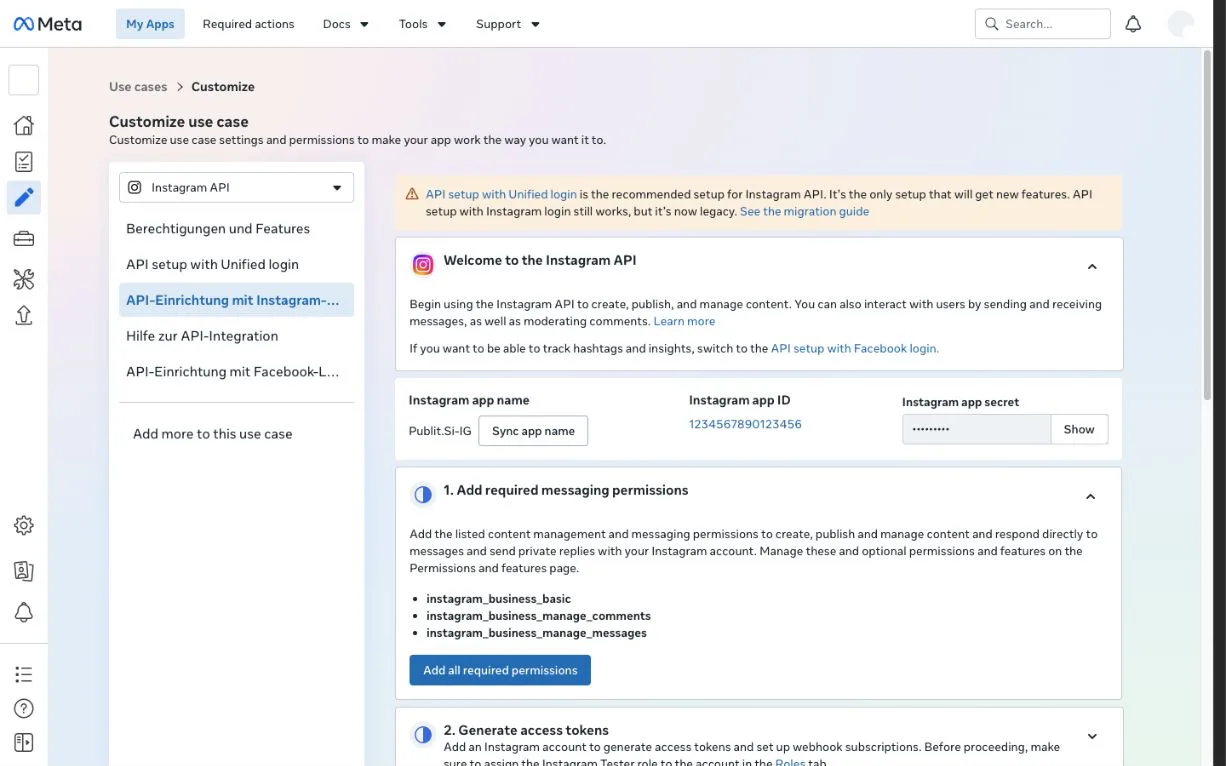
- 1:API setup with Instagram login
- 2:Instagram app ID
- 3:App secret (Show)
- 4:Permissions
Instagram can't load media
Bot Fight Mode is still on for the tunnel host.
Fix it in “Open a tunnel with Cloudflare” →Show where to fix it
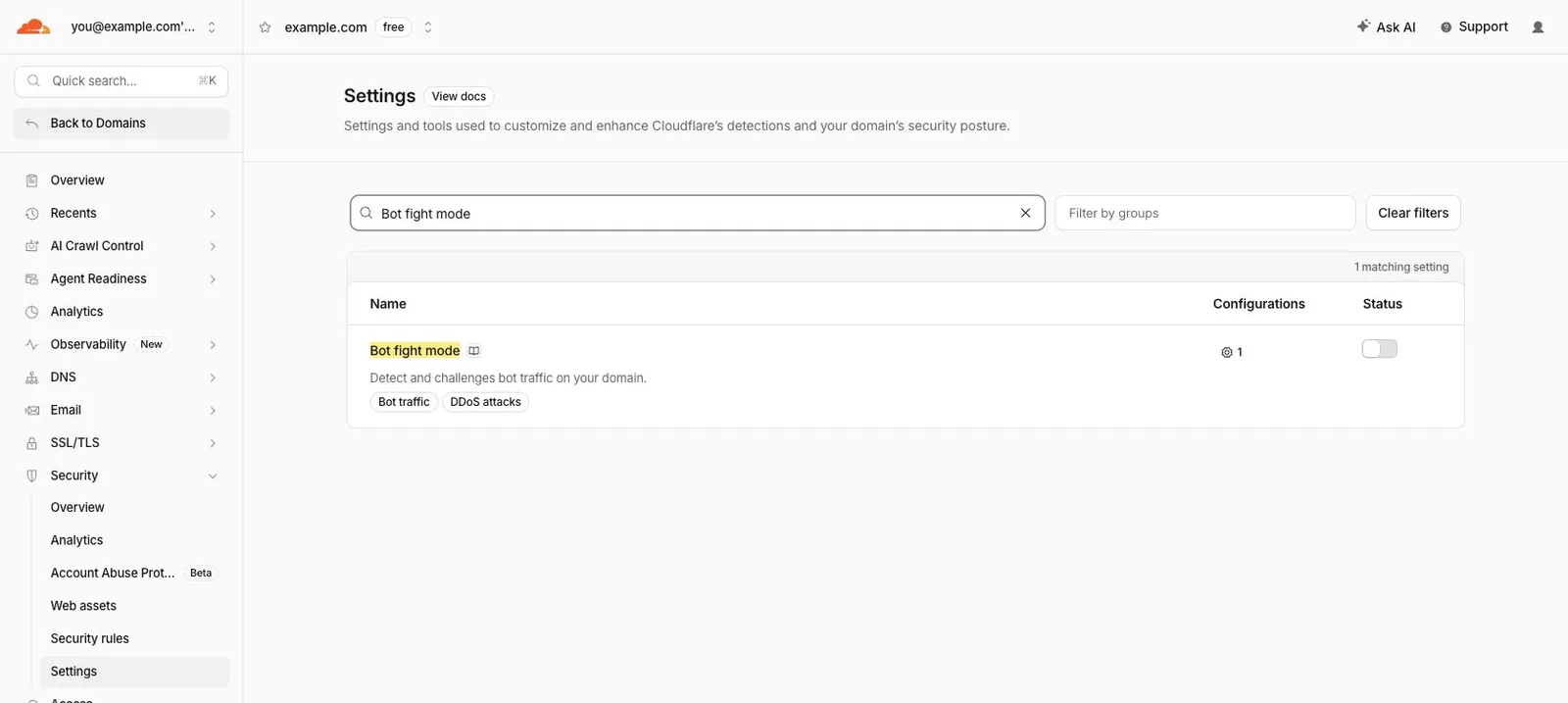
- 1:Security › Settings
- 2:Search “Bot fight mode”
- 3:Off
YouTube
Most YouTube problems come from Google's test mode: add yourself as a test user, and reconnect every 7 days or switch to production. Test mode or production? →
YouTube: "Access blocked: Google's review of … was not completed" (
403 access_denied)Your Google project is in test mode and your account isn't on the list yet. In your own Google project: Audience → Test users → + Add users, add the Google account you connect with, save and connect again (step 5.2). No Branding, domain or publishing is needed for this. The sign-in then lasts 7 days; to skip the weekly reconnect see step 5, "YouTube without the weekly reconnect".
Fix it in “Connect YouTube” →Show where to fix it
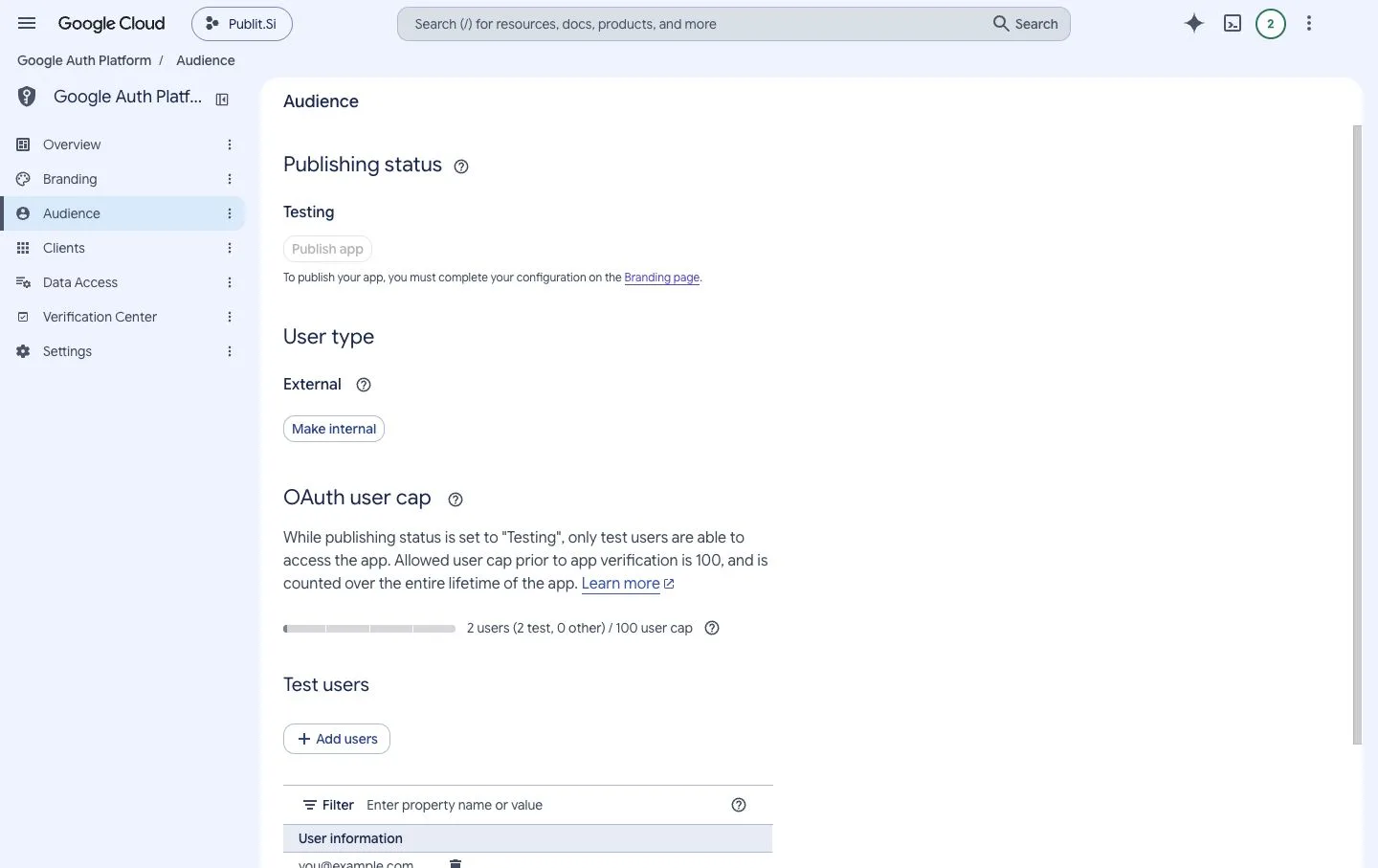
- 1:Testing
- 2:External
- 3:Add users
YouTube: "Publish app" is disabled and asks to complete Branding
You only need this to skip the weekly reconnect; as a test user you can connect right away. Google wants a homepage, privacy policy and terms on your own domain. With the Cloudflare tunnel (step 3), your gateway serves all three: https://your-host/, /privacy and /terms. Add your domain under Authorized domains and save. See step 5, "YouTube without the weekly reconnect".
Fix it in “Connect YouTube” →Show where to fix it
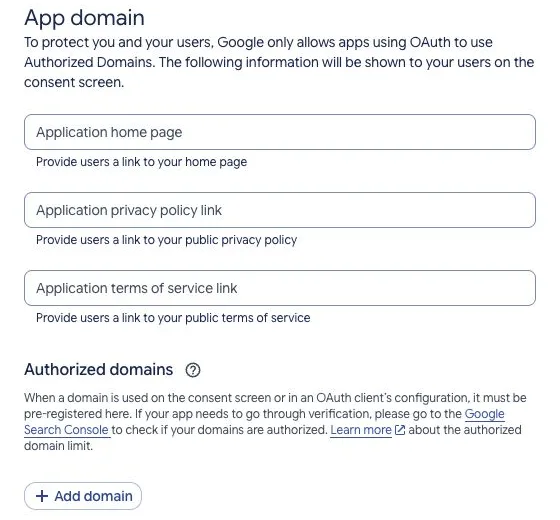
- 1:Home page, privacy, terms
- 2:Add domain
YouTube: "Google hasn't verified this app"
In test mode Google shows “You've been given access to an app that's currently being tested”: choose Continue. In production the unverified app shows Advanced → Go to … (unsafe). Both are fine for the project you created yourself. This warning differs from the blocked 403 screen, which needs a test-user entry in Testing.
Fix it in “Connect YouTube” →Show where to fix it
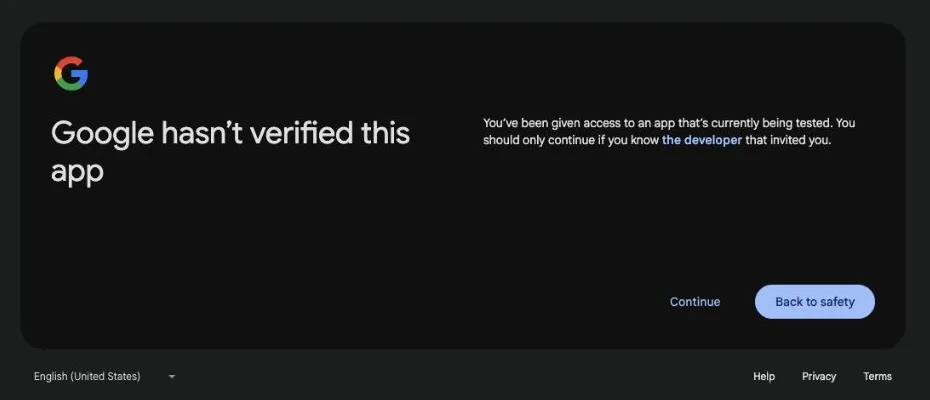
- 1:Continue
YouTube asks to sign in again after a week
In Google's test mode the sign-in ends after 7 days. Reconnect, or switch your Google project to production (step 5, "YouTube without the weekly reconnect") and reconnect once.
Fix it in “Connect YouTube” →Show where to fix it
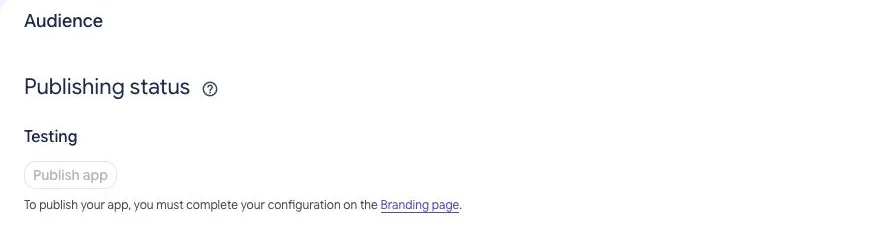
- 1:Testing
- 2:Publish app
YouTube: "renews automatically" but access stopped after 7 days
Publit.Si renews the short access token, but in Google's test mode the sign-in behind it still ends after 7 days. Check Google Auth Platform → Audience → Publishing status. Switch to production (step 5, "YouTube without the weekly reconnect"), then Accounts → open the account → Reconnect.
Fix it in “Connect YouTube” →YouTube: added as a test user but the same 403 still appears
Check the exact Google-account email selected during sign-in, not an alias or channel name. Confirm the saved client ID belongs to the Google project whose test-user list you changed. Save, then start a fresh connection. If the message names an organization policy, ask your Google Workspace administrator.
Fix it in “Connect YouTube” →Show where to fix it
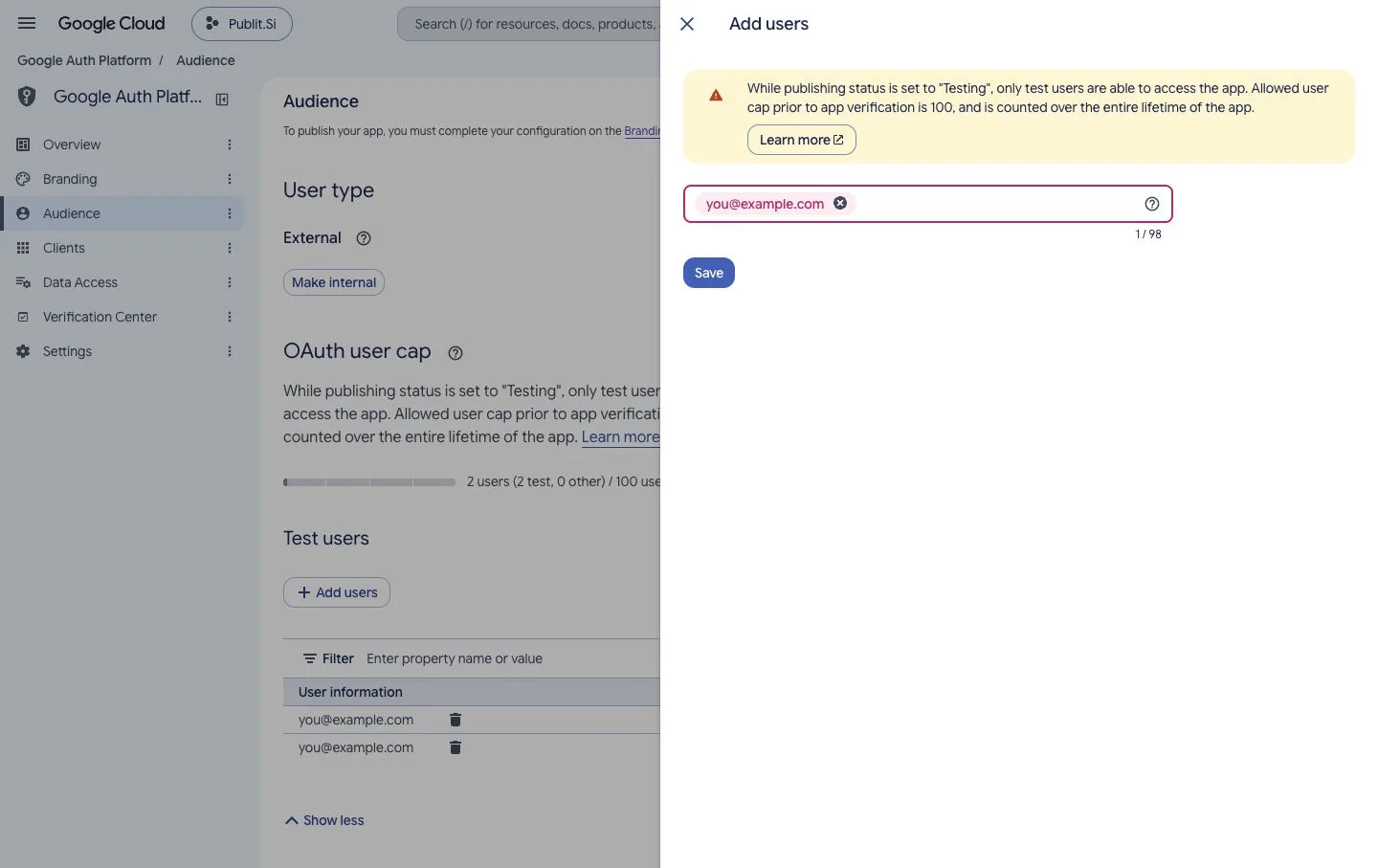
- 1:Your Google account
- 2:Save
YouTube: Branding rejects the domain or asks to verify ownership
Authorized domains takes a domain such as example.com, without https:// or a path. Do not enter localhost, the callback URL or publit.si. Use your tunnel's domain: your gateway serves the homepage, /privacy and /terms there. If requested, verify it in Google Search Console using a project owner/editor. The local callback stays under Clients → Authorized redirect URIs.
Fix it in “Connect YouTube” →Show where to fix it
- 1:Home page, privacy, terms
- 2:Add domain
YouTube:
invalid_client,unauthorized_clientor invalid Google client credentialsUse the Web application OAuth client's ID and matching secret from the same Google project. Enter them under Settings → Platform setup → YouTube → Enter credentials → Save and apply. After changing them, reconnect the account. Repeatedly reconnecting with the wrong credentials will not fix this.
Fix it in “Connect YouTube” →Show where to fix it
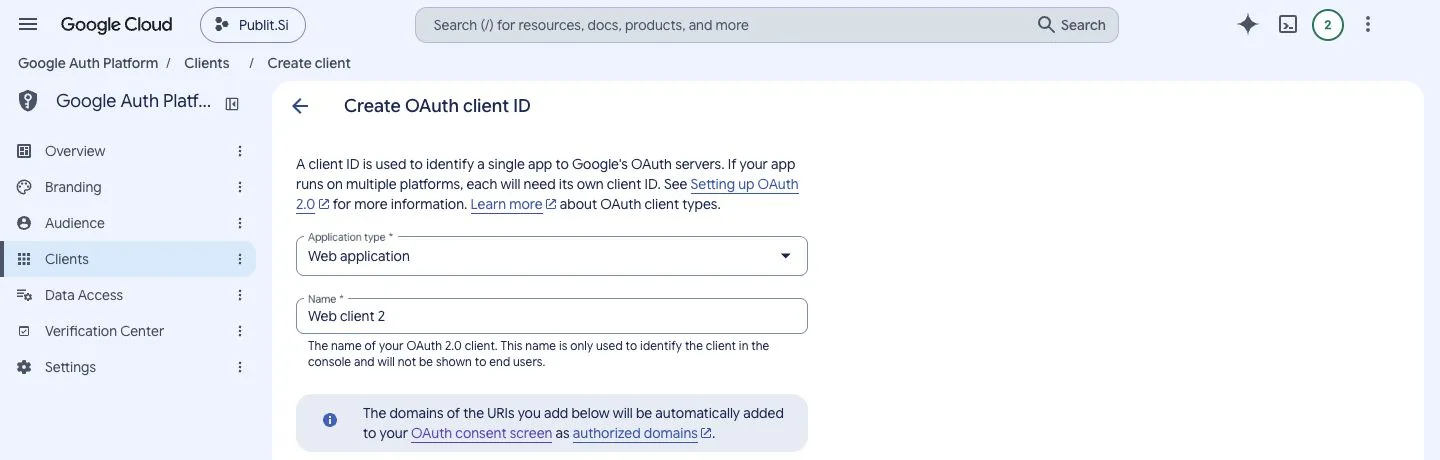
- 1:Clients
- 2:Web application
YouTube:
invalid_grant, access expired/revoked or Reconnect requiredUse Accounts → open the YouTube account → Reconnect; do not disconnect it first, because disconnecting cancels scheduled posts. If it happens after a week, your Google project is in test mode; see step 5, "YouTube without the weekly reconnect". Google may also revoke access or apply account policies; this error alone cannot identify the cause.
Fix it in “Connect YouTube” →YouTube: API disabled,
SERVICE_DISABLEDoraccessNotConfiguredin an API responseIn the project matching your saved client ID, APIs & Services → Library: enable YouTube Data API v3. For watch-time reports also enable YouTube Analytics API. Wait for Google to apply the change and retry. A sign-in page referring to Workspace administrator configuration instead needs that administrator's help.
Fix it in “Connect YouTube” →Show where to fix it
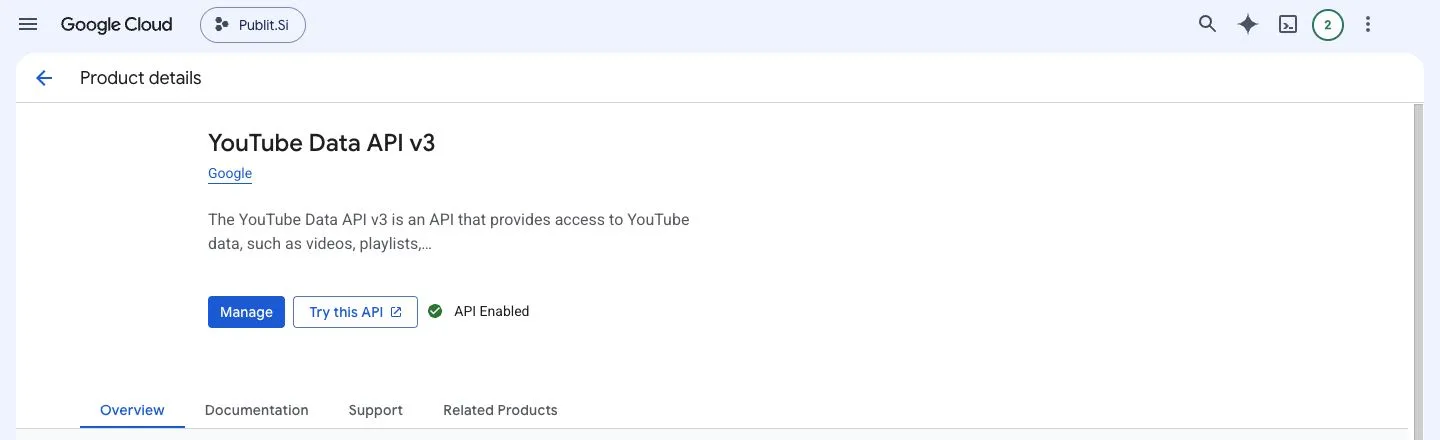
- 1:Enable / Manage
YouTube: no YouTube channel, wrong channel or missing Brand Account
Sign in to YouTube with that Google account and confirm it has access to the intended channel. Create a channel if it has none. Reconnect in Publit.Si and choose the intended channel; a personal channel can be listed under your Google-account name. For a Brand Account in Testing, list its managing Google account as a test user.
Fix it in “Connect YouTube” →YouTube: upload permission denied,
insufficientPermissionsor uploads ahead need reconnectingReconnect the account and grant the requested upload permission. Uploading ahead with YouTube publishing later also needs permission to manage the uploaded video; without it, Publit.Si uploads at the scheduled time. For partial statistics, check the enabled APIs and granted permissions. If Google offers no way to grant access, inspect the policy or verification message rather than repeating the connection.
Fix it in “Connect YouTube” →YouTube:
admin_policy_enforced,org_internalor an organization blocks accessFor org_internal, check the intended Audience setting; a project restricted to Internal only accepts its organization members. For an account-policy block, ask your Google Workspace administrator to review this OAuth client's access. Adding a test user or switching to production cannot override organization policies.
YouTube:
quotaExceededoruploadLimitExceededCheck Settings → Limits today and the Google project's API quotas. Connected channels using the same project share its project quota; channels may also have their own upload limits. Publit.Si waits and retries rate-limited work. Project daily quotas reset at midnight Pacific Time; a channel limit may need a separate wait. Reconnecting does not raise a quota.
YouTube: browser cannot open localhost after Google sign-in
Keep Publit.Si running and use the exact callback shown under Settings → Platform setup → YouTube, including host and port. Open the app on the same computer as the browser, or use the SSH tunnel described in SETUP.md for a server. A phone or another computer's localhost points to that device, not your Publit.Si installation.
Fix it in “Connect YouTube” →Show where to fix it
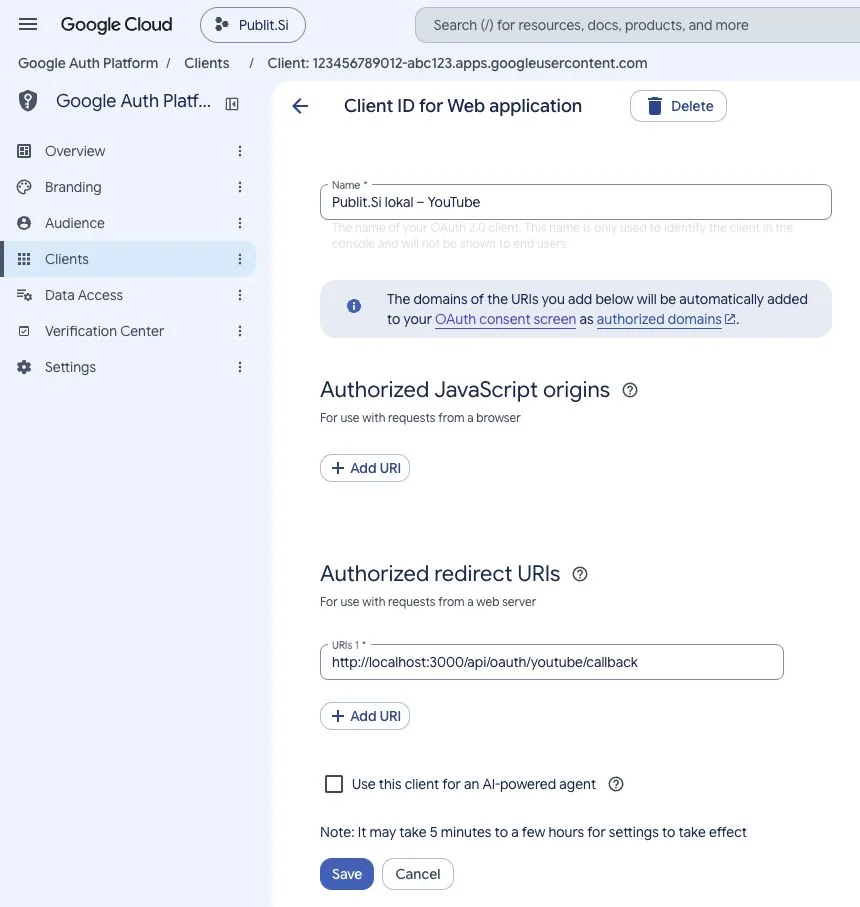
- 1:JavaScript origins: leave empty
- 2:Authorized redirect URIs
TikTok
TikTok rejects the login with a scope error
The statistics scopes aren't enabled. Set
TIKTOK_ANALYTICS=0, restart, reconnect.Fix it in “Connect TikTok” →Show where to fix it
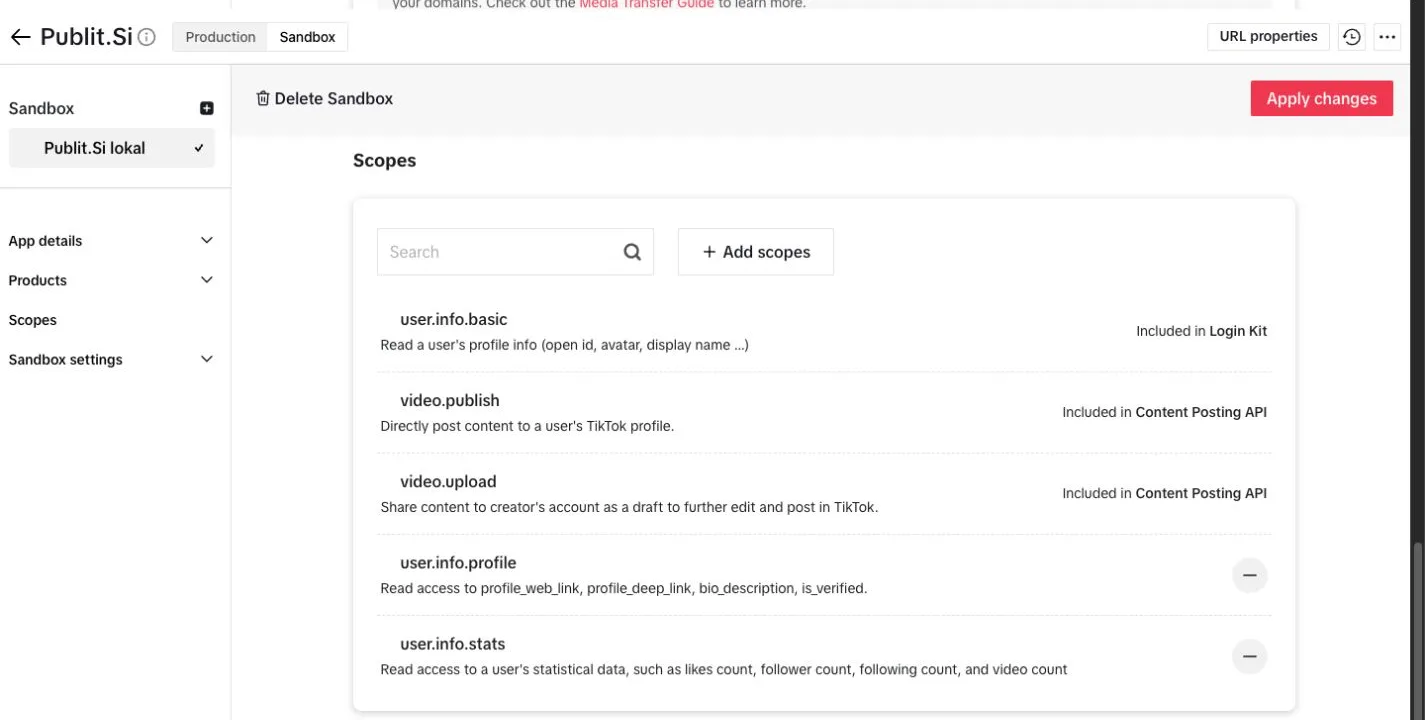
- 1:user.info.basic
- 2:video.publish
- 3:video.upload
user.info.statsandvideo.list(Display API).TikTok post never gets marked as published
The extension isn't installed in that Chrome profile, or click "It's online" in the queue.
Fix it in “Connect TikTok” →Show where to fix it
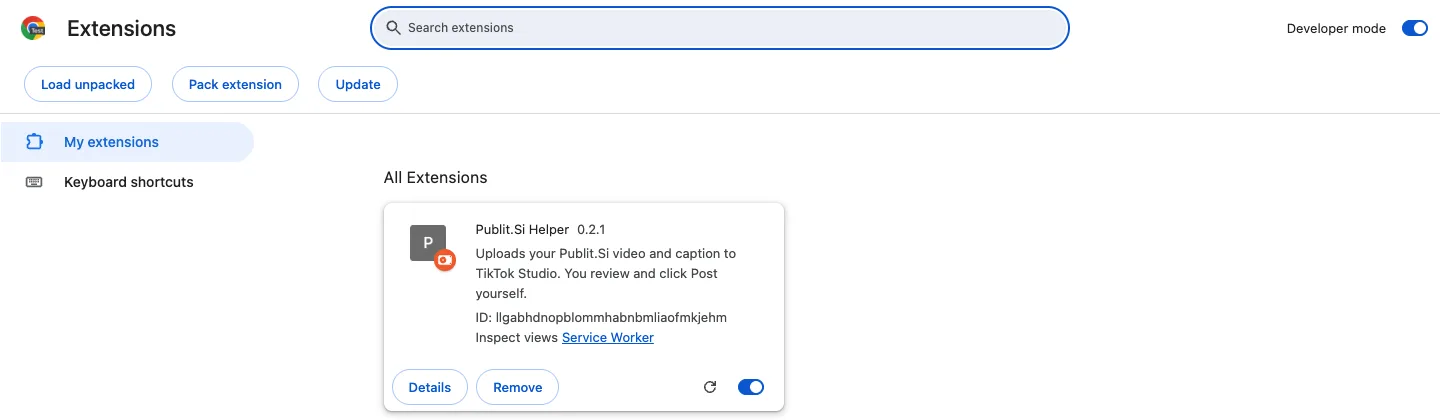
- 1:Developer mode
- 2:Load unpacked
- 3:Publit.Si Helper
chrome://extensions→ Developer mode on → Load unpacked → theextension/folder.
Studio and AI
Daily Shorts run fails: the agent is not installed or signed out
Sign in in a terminal (
Fix it in “Turn on AI” →claude /login,codex loginorcursor-agent login), then click Run now, or pick another agent in the automation.The agent changes files in my app's repository
Link the project to a separate marketing folder instead: Studio → Change project folder → Create a marketing folder.
Still stuck?
The logs are in ~/Library/Application Support/PublitSi/logs/<service>.log on the Mac, %LOCALAPPDATA%\PublitSi\logs\<service>.log on Windows and ~/.local/share/PublitSi/logs/<service>.log on Linux. Email info@maxantonschneider.com with your order number, what you did and the relevant log lines. Remove tokens and secrets first.