
Connect Instagram
You create your own small app at Meta. It stays in Development mode: only you use it, so Meta doesn't need to review it. Publit.Si then posts with your own keys.
You need
- The tunnel from step 3
- An Instagram account you can switch to Professional
- A Meta (Facebook) login for developers.facebook.com
Make the account Professional
In the Instagram app: Settings → Account type and tools → Switch to professional account (Creator or Business). Posting through the API only works for professional accounts.
Create the Meta app
Open developers.facebook.com → Create app.
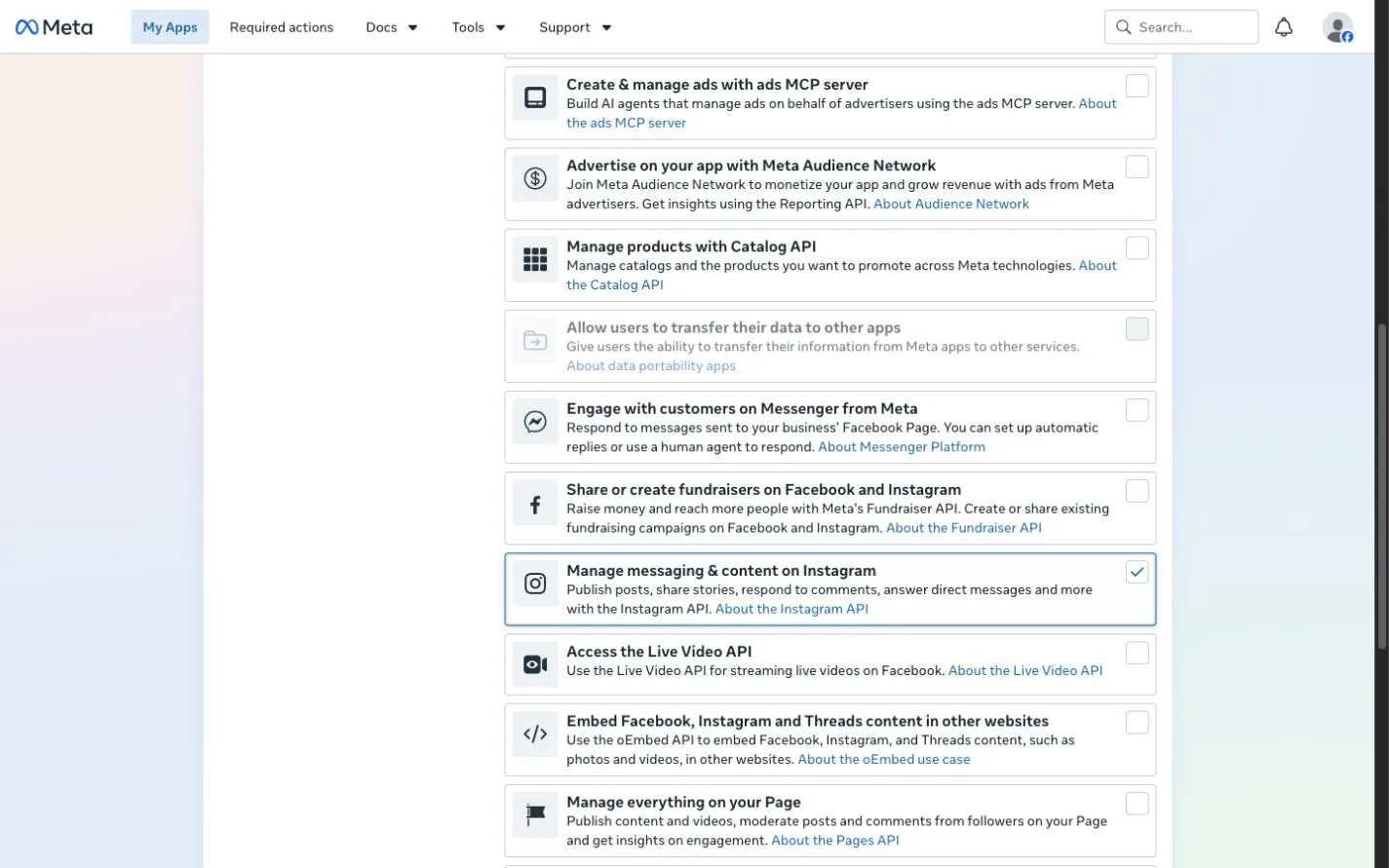
- 1:Manage messaging & content on Instagram
Use case: Manage messaging & content on Instagram (the Instagram API). The app can stay in Development mode.
Use cases → Customize → API setup with Instagram login. Meta marks it legacy and points to “Unified login”; Instagram login still works and is what Publit.Si uses.
Add these permissions:
instagram_business_basicandinstagram_business_content_publish. For views and reach alsoinstagram_business_manage_insights, to read comments in Publit.Siinstagram_business_manage_comments.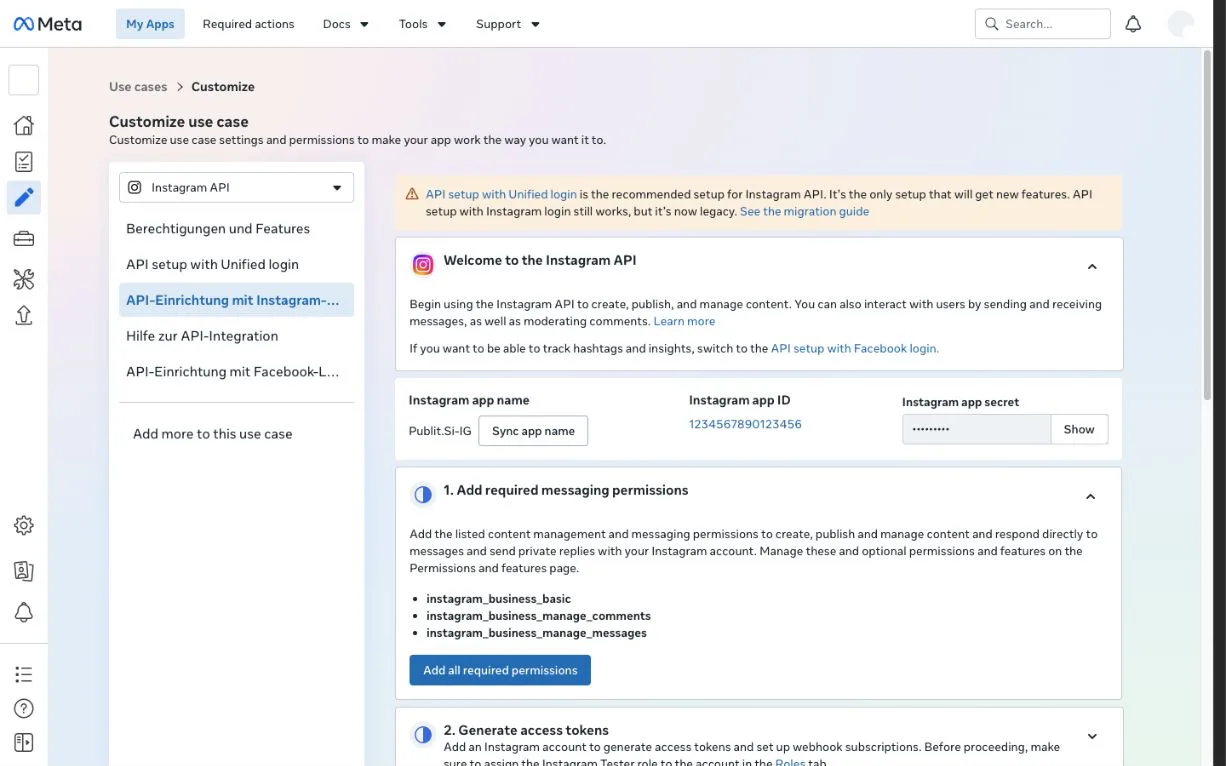
- 1:API setup with Instagram login
- 2:Instagram app ID
- 3:App secret (Show)
- 4:Permissions
Add yourself as a tester
App roles → Roles → Add People → Instagram Tester → enter your Instagram username. Testers then show in the All roles list.
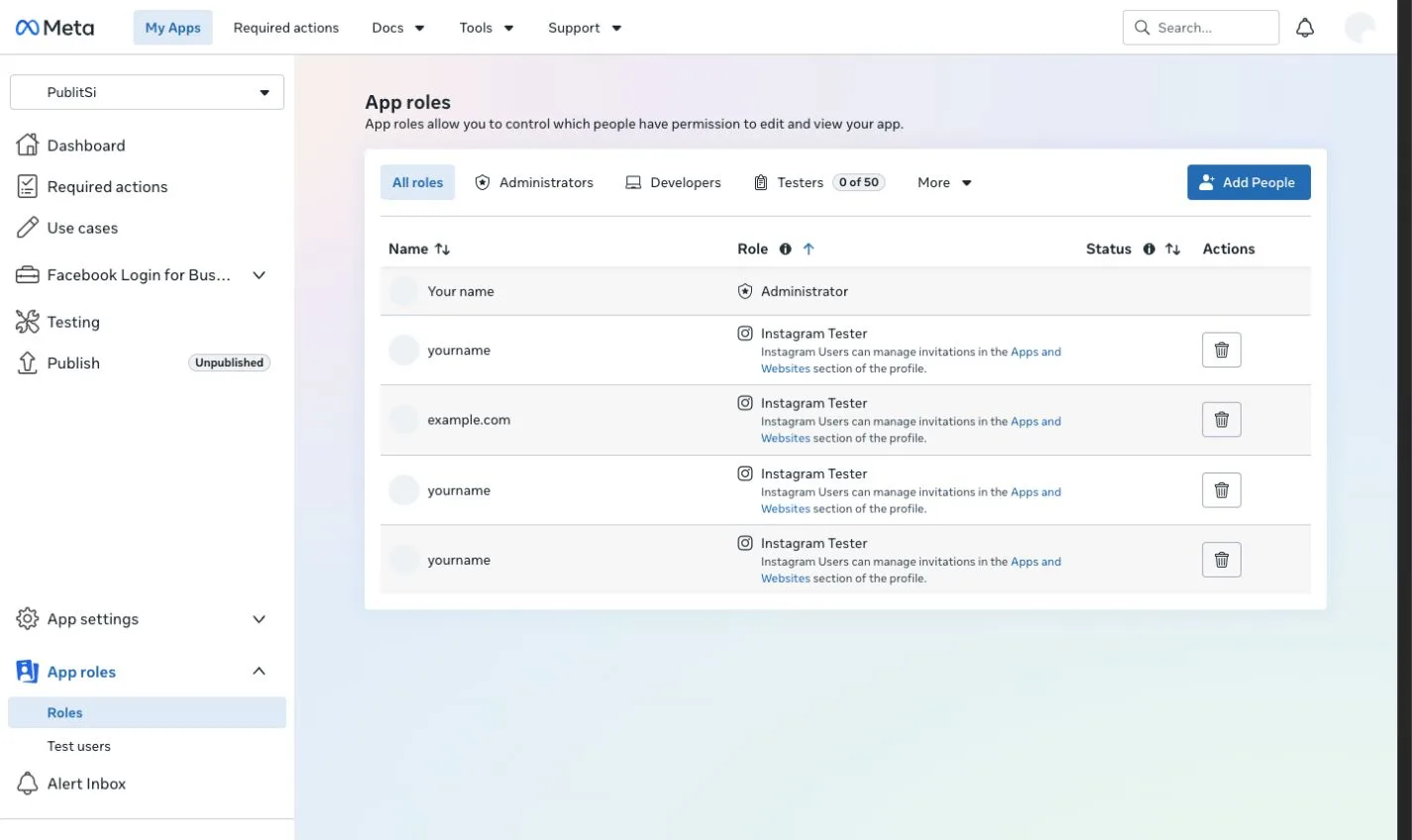
- 1:App roles › Roles
- 2:Add People
- 3:Instagram Tester
Accept the invitation in Instagram: Settings → Website permissions → Apps and websites → Tester Invites → Accept. On the web it's at instagram.com/accounts/manage_access.
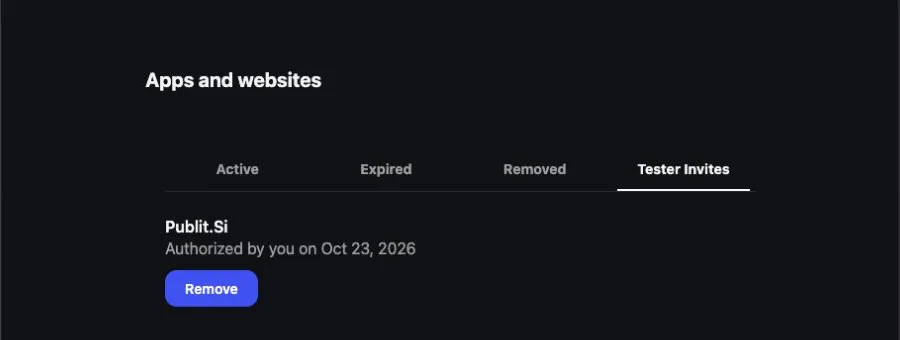
- 1:Tester Invites
- 2:Your app
“Insufficient developer role” when connecting means this invitation isn't accepted yet, or Chrome is signed in to another Instagram account.
Set the redirect URI
In Publit.Si, open Settings › Platform setup › Instagram and copy the redirect URI. It looks like
https://publish.example.com/oauth/instagram/callback.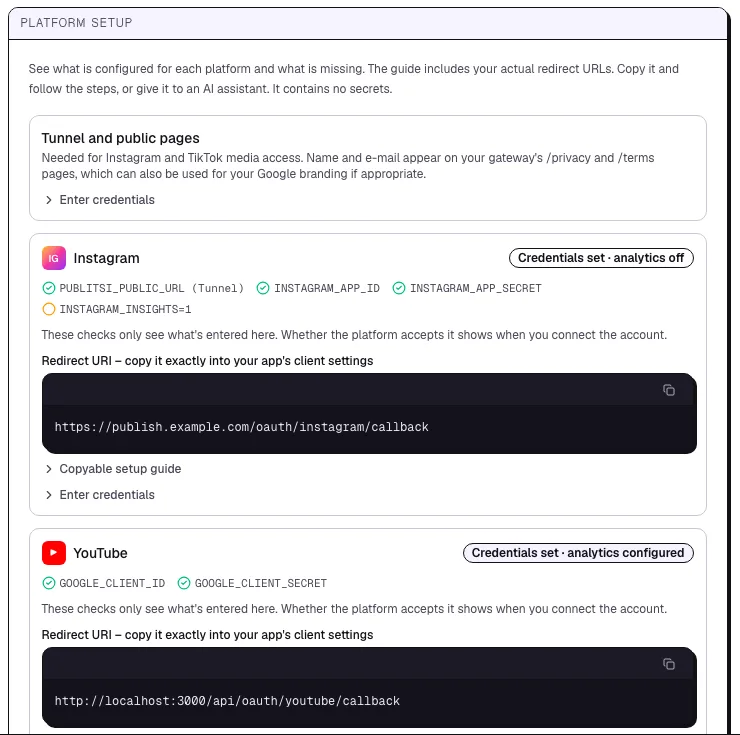
- 1:Status of the platform
- 2:Redirect URI to copy
Meta: on API setup with Instagram login, step Set up Instagram business login → Business login settings → OAuth redirect URIs → paste it → Save.
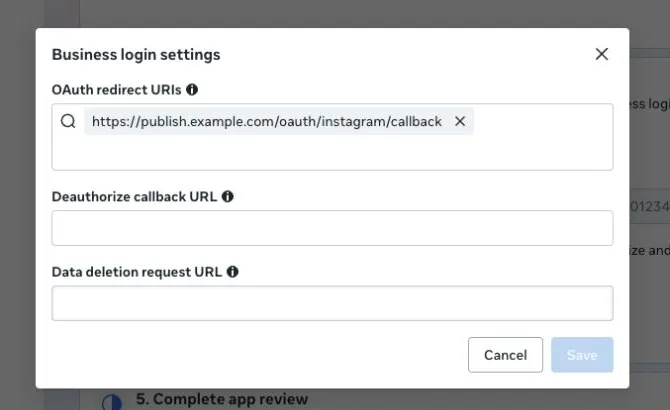
- 1:OAuth redirect URIs
- 2:Save
Enter the keys
Copy the Instagram app ID and the Instagram app secret (behind Show) from API setup with Instagram login. Not the Facebook app ID at the top of the page.
Enter them in Publit.Si under Settings › Platform setup › Enter credentials, or in
.env:INSTAGRAM_APP_ID=… INSTAGRAM_APP_SECRET=… INSTAGRAM_INSIGHTS=1 # if you added the insights permission INSTAGRAM_COMMENTS=1 # if you added the comments permission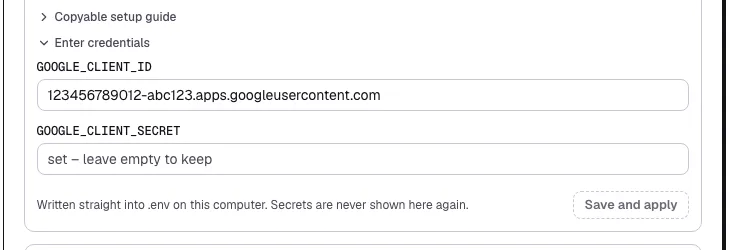
- 1:Client ID
- 2:Save and apply
.envfor you and restarts the services. Secrets are never shown again.
Several Instagram accounts? Create one Chrome profile per account and sign in to Instagram there. Publit.Si asks which profile to use when you connect.
Check
Settings › Platform setup › Instagram shows every item as set. In step 9 the connection shows your account.
Common problems
Stuck? Write to us. We're happy to help. Leave out secrets and tokens.